
Route the board
On the board, dashed lines show which pads must connect. Routing draws copper tracks along them.
Before you start
Section titled “Before you start”Open the sample with cargo run -p pcbcraft -- --sample. Click the Layout tab.
See what needs routing
Section titled “See what needs routing”-
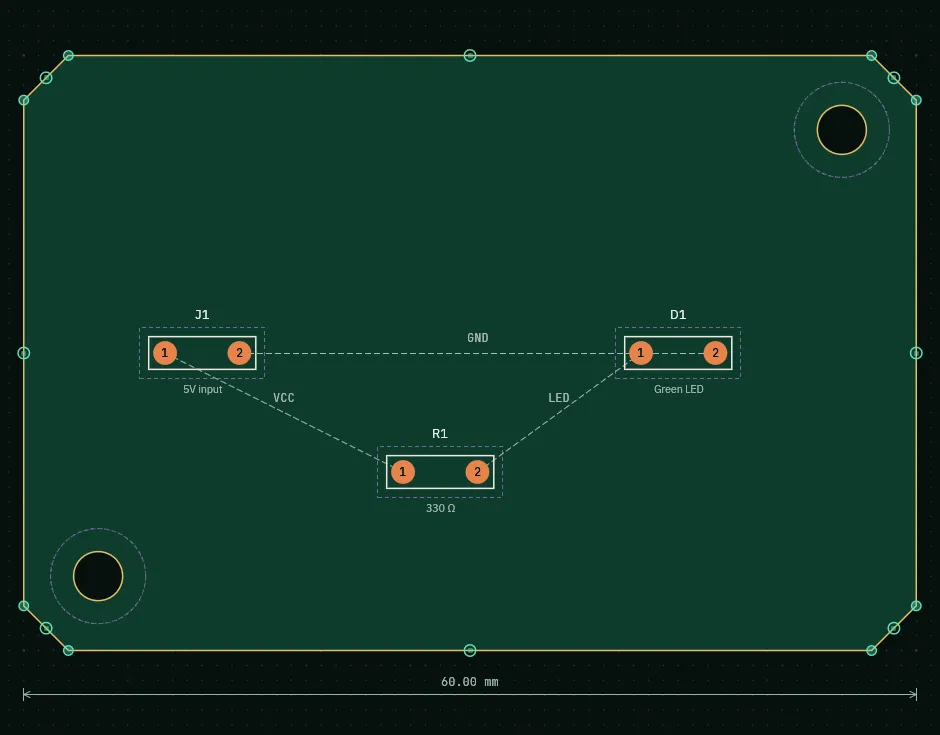
Look at the board. Three parts sit on a 60 by 40 mm board.
-
Dashed lines join pads of the same net. They are labelled VCC, LED and GND.
Pick the layer
Section titled “Pick the layer”- In the Layers tree, find Tracks under Layer 1 · Top. It carries the Active tag, so new tracks go on the top side.
The status strip shows the active layer, for example Layer 1 of 2 · Top copper. Click another layer row in the Layers tree, or press ] and [, to route on a different layer.
Route two pads
Section titled “Route two pads”-
Click Route in the tool strip, or press X.
-
Click the first pad.
-
Click the second pad of the same net.

You can also press on the first pad and drag to the second pad. If you release off a pad, the app says the route is cancelled and changes nothing.
You can also right-click a pad and pick Start route.
Add a via
Section titled “Add a via”- Click Via.
- Click a track or a pad. A via joins the copper layers on that net.
A finished board
Section titled “A finished board”The Showcase board has a finished route. Open it with cargo run -p pcbcraft -- --project examples/showcase.pcbcraft.
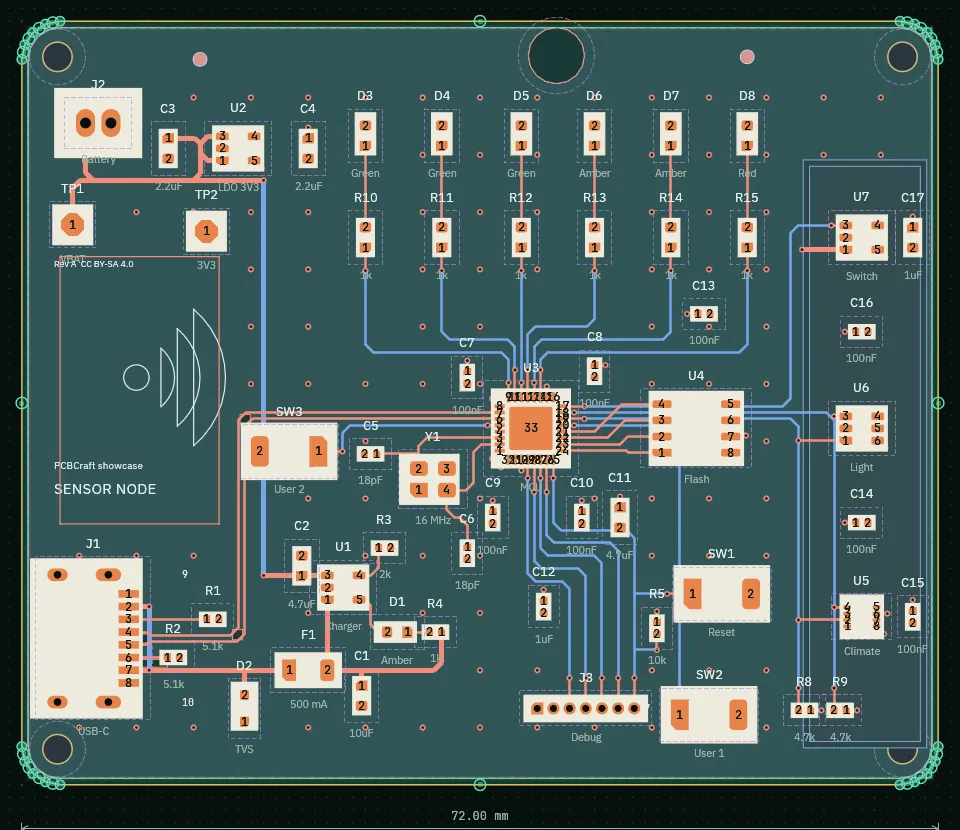
Top copper is orange and bottom copper is blue. The Layers tree lists each net with its item count.
If a route is refused
Section titled “If a route is refused”The app says why in the status strip and changes nothing. The sentence names the net that is in the way.
What you should see
Section titled “What you should see”- A track joins the two pads you picked.
- The tool goes back to Select.
Round the corners
Section titled “Round the corners”- Select the tracks whose corners you want smooth, or select nothing to use every track.
- Choose Edit, then Round corners.
- Type a radius in millimetres and click Round corners.
Each sharp corner between joined tracks becomes an arc. A short track gets a smaller arc, and a corner that would break clearance is left as it was. The status strip says how many corners were rounded. One Undo brings every sharp corner back. To round a single corner, select one track and click Round corner in its properties.