
Save your design
A design is one file with the extension .pcbcraft. Saving writes the whole design to that file.
Before you start
Section titled “Before you start”Open the sample with cargo run -p pcbcraft -- --sample and make a change, for example move a part.
-
Click File at the top left.
-
Pick Save. The tip reads: write the design to its file on disk.
-
Or press Ctrl+S.

The status strip tells you what happened. Saving again replaces the file with the current design.
Find the file
Section titled “Find the file”-
Click the Files tab.
-
Read the row under Open now. Select it, and the Details panel at the right names the file the design is saved to.
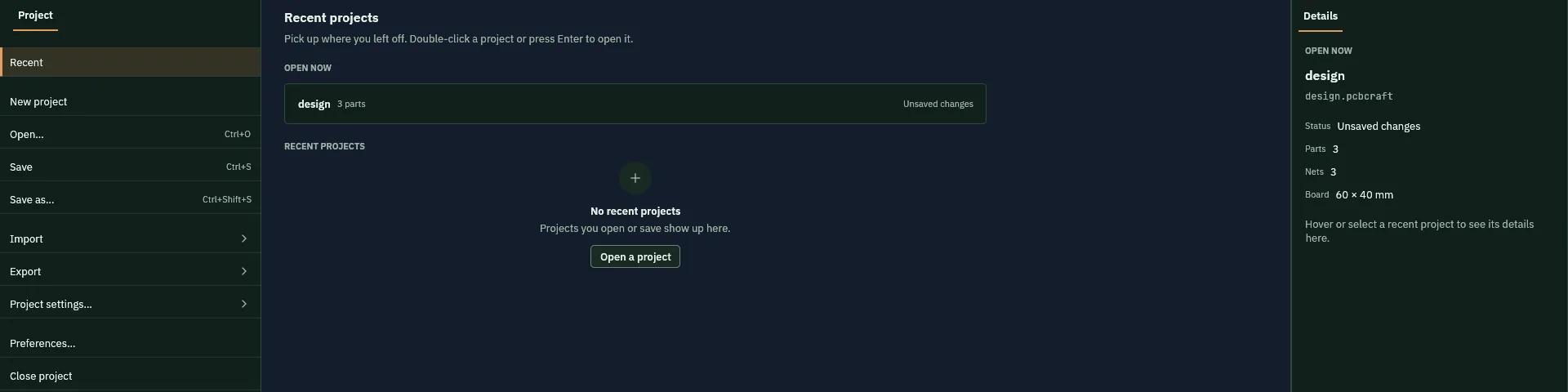
A new design or the sample uses design.pcbcraft in the folder where you started the app. A design you opened keeps its own file name.
Open a design again
Section titled “Open a design again”- Click File, then Open. The Start screen appears.
- Click a design in the list of recent designs, or type a path in the box and click Open.
You can also start the app with a file:
cargo run -p pcbcraft -- --project design.pcbcraftEvery edit is one undoable step. Use Edit, then Undo, or press Ctrl+Z, before you save if you change your mind.
Limits
Section titled “Limits”- The browser build has no disk. File, Open picks a design file (or drop one on the window), and Save or Save as downloads the design as a
.pcbcraftfile. Export of a picture, a board interchange file, a bill of materials or the Gerber files downloads too (several files arrive as one zip). Other exports still need the desktop app. - There is no Save as command. To keep a second copy, copy the file in your file manager.
What you should see
Section titled “What you should see”- The file exists in the folder after you save.
- It appears in the list of recent designs on the Start screen.