
Update the board from the schematic
The schematic and the board share one design. With automatic sync on, every schematic edit reaches the board at once. Turn it off when you want to batch edits, then update the board yourself.
Before you start
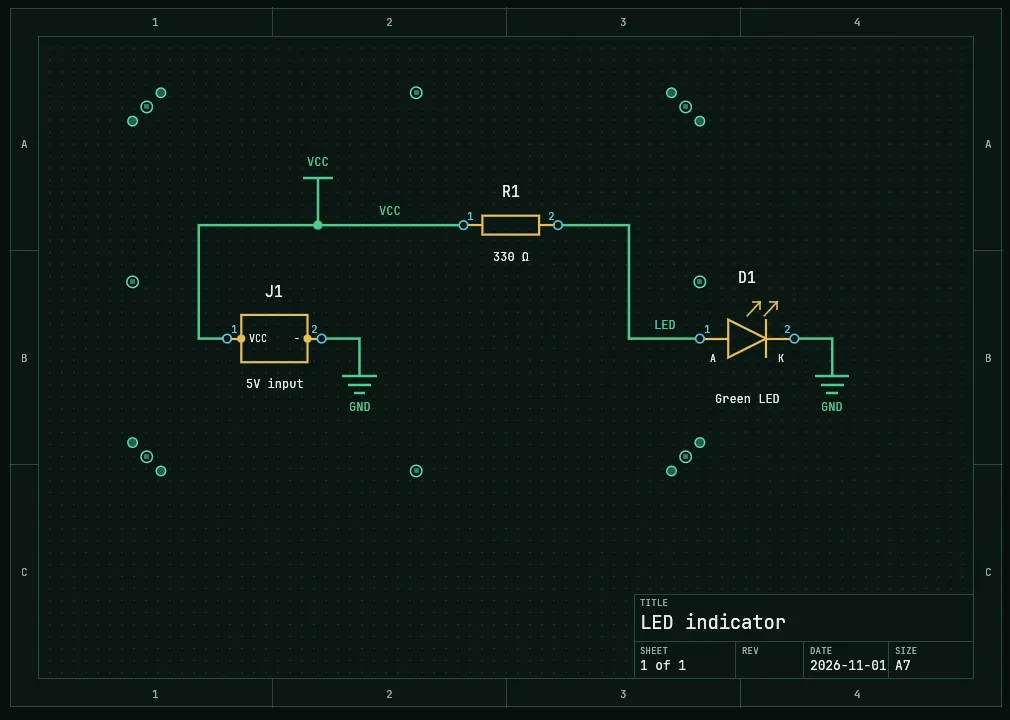
Section titled “Before you start”Open the sample with cargo run -p pcbcraft -- --sample. Stay on the Schematic tab.
Turn automatic sync off
Section titled “Turn automatic sync off”- Open Edit, then Preferences.
- Find Keep the board in sync with the schematic automatically.
- Turn the switch off if it is on.
You can turn it on again at any time from the same place, or from Edit, then Keep board in sync automatically.
Change the schematic
Section titled “Change the schematic”-
Click Move, then drag a part a little.
-
Click Layout. The board may still show the old positions until you sync.
Update the board
Section titled “Update the board”- Open Edit.
- Pick Update board from schematic.
- Click Layout. The parts and nets match the schematic again.
The status strip tells you what happened. The board view opens after a manual update.
What you should see
Section titled “What you should see”- After Update board from schematic, the board matches the schematic.
- With automatic sync on, you do not need the command; the board updates with each edit.